

If an analyzer is not recognized or does not start properly - e.g. hangs during the firmware transmission - a reconnecting is usually the first choice. But what if you have only remote access to the computer hosting the analyzer and - even worse - cannot reboot the system for other reasons. In this scenario a targeted restart of the associated USB hub is a solution.
Windows
On modern Windows (we tested it with Windows 10/11) you can use the PowerShell to restart a hanging analyzer (or any other USB device). To do so open the Windows PowerShell as administrator. Please note: This and all other solutions will only work with admin right!
In the PowerShell input the following command to retrieve the serial number(s) of the connected analyzer(s):
pnputil /enum-devices /class Ports /connectedFor instance:
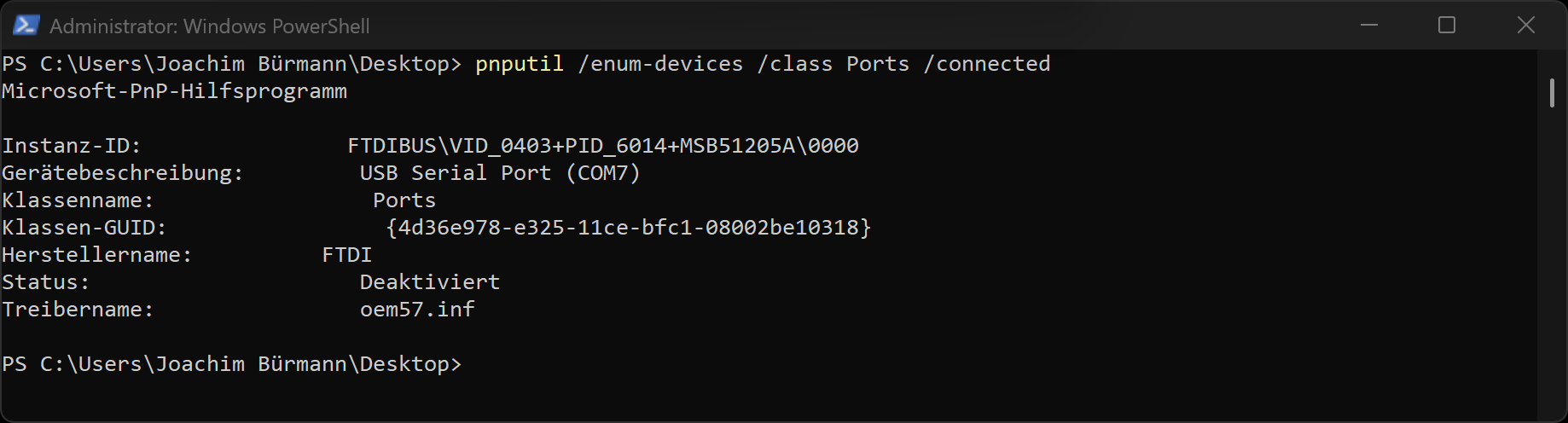 The command shows one analyzer connected with the system. From the Instance ID output:
FTDIBUSVID_0403+PID_6014+MSB51205A000
we retrieve the serial number MSB51205 (The S/N is always MSB and 5 digits). To reset this analyzer first disable the device with:
pnputil /disable-device "USBVID_0403&PID_6014MSB51205"This has the same effect like disconnecting the analyzer physically. Then enable it again with:
pnputil /enable-device "USBVID_0403&PID_6014MSB51205"Both commands lead to a power interrupt forcing the analyzer to an internal reset.
Windows 8 and older
If your PowerShell version doesn't provide the necessary pnputil commands, you can try the amazing UsbTreeView tool from Uwe Sieber. You can download it here. Please choose the version fitting with your Windows OS (version, 32/64 bit).
- Unzip and store the UsbViewTree.exe on your Desktop
- Execute it as Admin.
- Right click the hanging analyzer in the left tree view and click 'Restart port'.
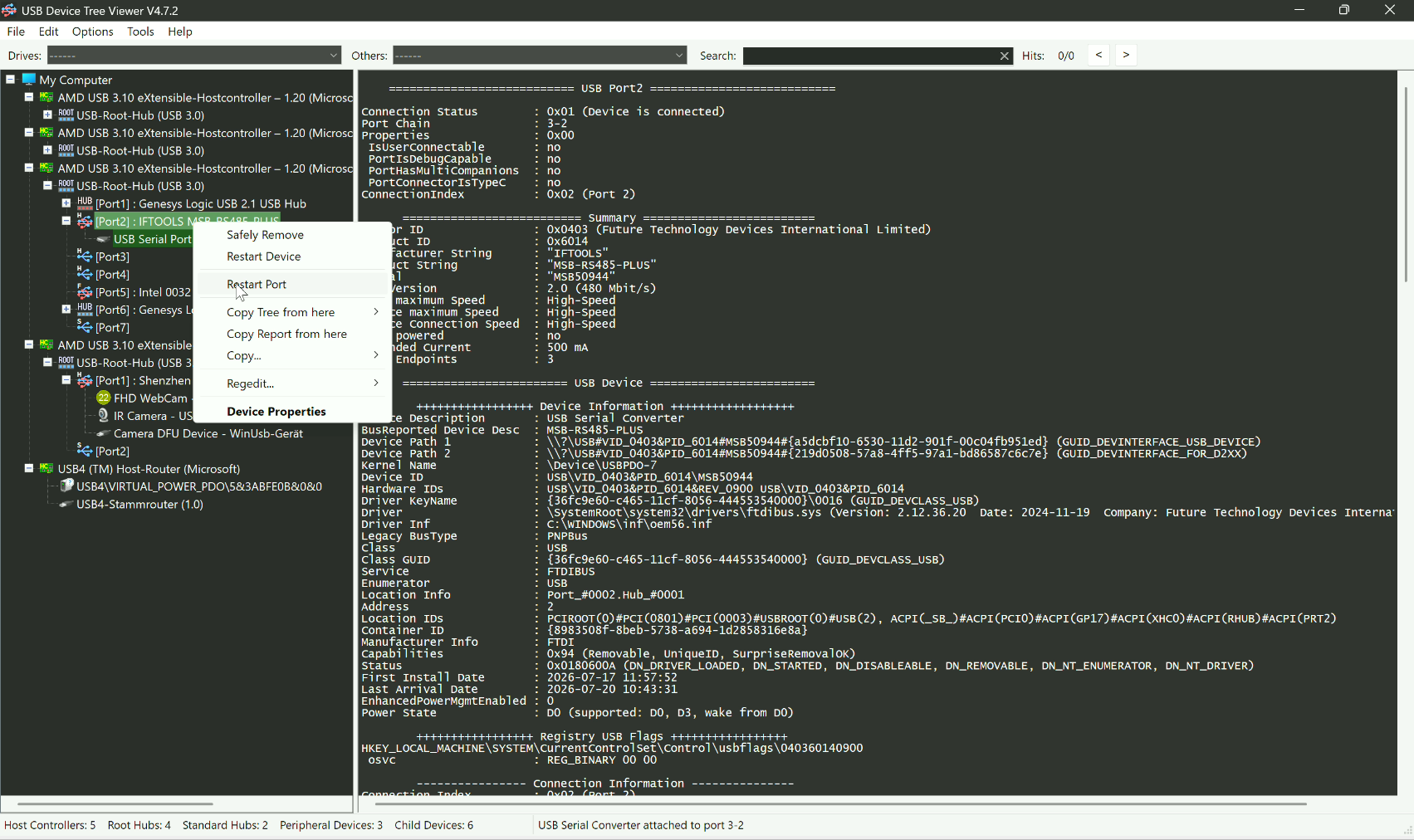
You can of course use UsbTreeView with Windows 11. It makes the whole procedure of resetting an USB device very comfortable. But you have to download it first - which may be is a problem when the computer running the analyzer (or any other USB device you want to reset remotely) doesn't allow it for safety reasons.
Linux
Linux users are particular happy because the necessary tool to do this are part of the usbutils package and can bei easily installed by your package manager. E.g. under Debian/Ubuntu based distributions with:
sudo apt install usbutilsFor other distributions use the search features of your package manager to install the usb utilities. Afterwards open a terminal and input:
usbresetWithout any parameter the command usbreset lists all connected USB devices. For instance:
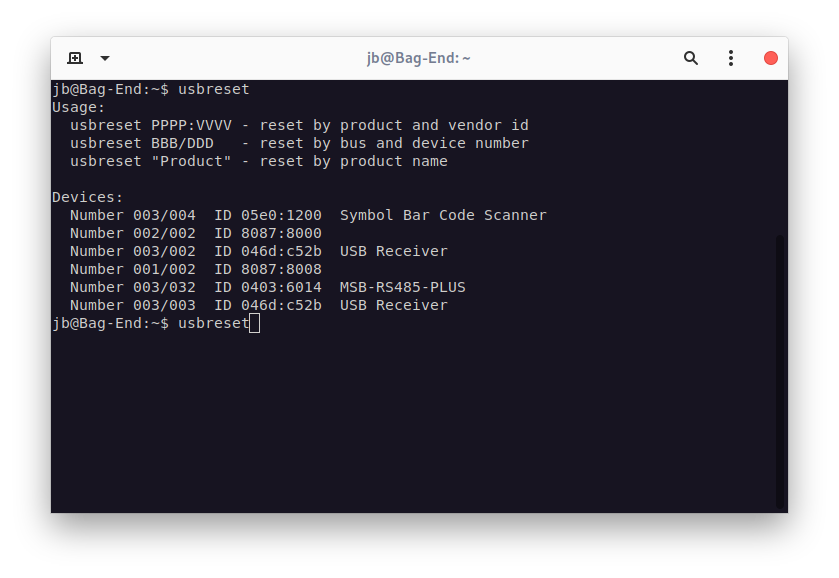 The hanging analyzer should be easily found by its product name, here MSB-RS485-PLUS. To reset the assigned USB port input:
usbreset MSB-RS485-PLUSMultiple connected analyzers
If you have more than one analyzer connected to your PC, you can reset the hanging one by pass the bus and device number. For this - of course - you first have to check which one hangs. To reset an individual device we need its usb bus and device number and the according serial number. In case of an IFTOOLS MSB-PLUS analyzer you can retrieve both with:
lsusb -v -d0403:6014Write down the USB bus and device number assigned to the hanging analyzer (serial number). Then repeat the reset command with the bus and device number, for instance:
usbreset 003/002