

The default settings in the Ubuntu Unity desktop environment move a window's control panel away from the actual window up to the top panel of the screen - this is called 'global menu'.

The Ubuntu Unity delveloper considered this as a major improvement for the work-flow. But since the analyzer software consists of several independent windows which let you analyse your record on different OSI levels and record positions, this feature can get especially annoying when switching from one analysis tool to the next. You can - of course - disable the global menu completely. This would affect all application, but here we show you, how you get the menu back to the analyzer software only.
Open the Analyzer start icon on your desktop with gedit (or another editor). Then replace the following line:
Exec /home/YOUR_USERNAME/msb-4.6.2/msb_serv
with:
Exec env UNITY_MENUPROXY=0 /home/YOUR_USERNAME/msb-4.6.2/msb_serv
See here:
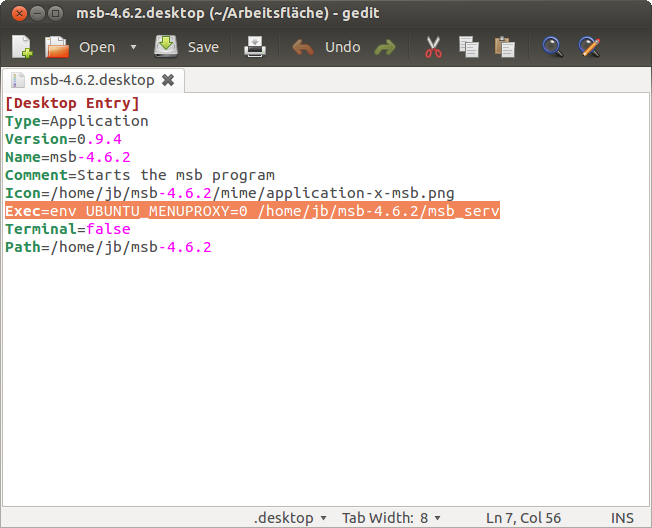
In the example we assume that you have installed version 4.6.2 in your home directory but surely you can adapt it to your analyzer software version and installation path.
Save the modification and restart the analyzer program again by (double) click the start icon. Now all analyzer software windows should have their own menu back.

Disable global menu on system level
If you decide to switch the global menu off entirely (for all applications), here are the necessary steps. Please note that this will disable the global menu for all users on your system!
Open a terminal and enter following command:
sudo apt-get autoremove appmenu-gtk appmenu-gtk3 appmenu-qt
Log out and login again (or reboot).
If you change your mind later, just reinstall the packages with
sudo apt-get install appmenu-gtk appmenu-gtk3 appmenu-qt