

Windows only! Every time you try to start one of the several Views (for instance DataView, ProtocolView or SignalView) the according program window does not show up. Instead the analyzer software reports the following error message:
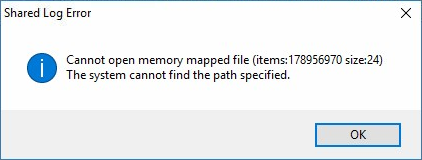
Even after restart the analyzer software or reboot the OS the error remains.
Why does this happen?
The analyzer software uses the boot time (the seconds since the system was started) as an individual key for the location where it places information which are intended to be shared between the analyzer control program and its views. Windows records the boot time as a special event in the system log (event ID 6005). This approach is usual for a lot of Windows applications and not special to the analyzer software. For unknown reasons sometimes Windows does not generate an appropriate boot event. In that case the analyzer control program is not able to share important information (via shared memory) about the record with its views because it fails to determine the boot time and therefore cannot access the located information. The views report this with that given error dialog.
Note - this is not an analyzer software problem but a hint that something with your Windows OS is wrong. Especially if the error remains after a reboot. You may even notice that other programs stop to work.
First Solution (quick resolve)
Update your analyzer software to version 4.6.2. You will find it on our download page. Starting with this version the analyzer program uses a fall back mechanism when the boot event is not logged by the Windows OS. So it becomes completely independent of the boot event 6005. Nevertheless it's good practice to investigate the matter further since the missing boot event may affect also other applications. If you don't like or cannot update the analyzer software, you also have to know how you can circumvent this error.
Second Solution (clear event log)
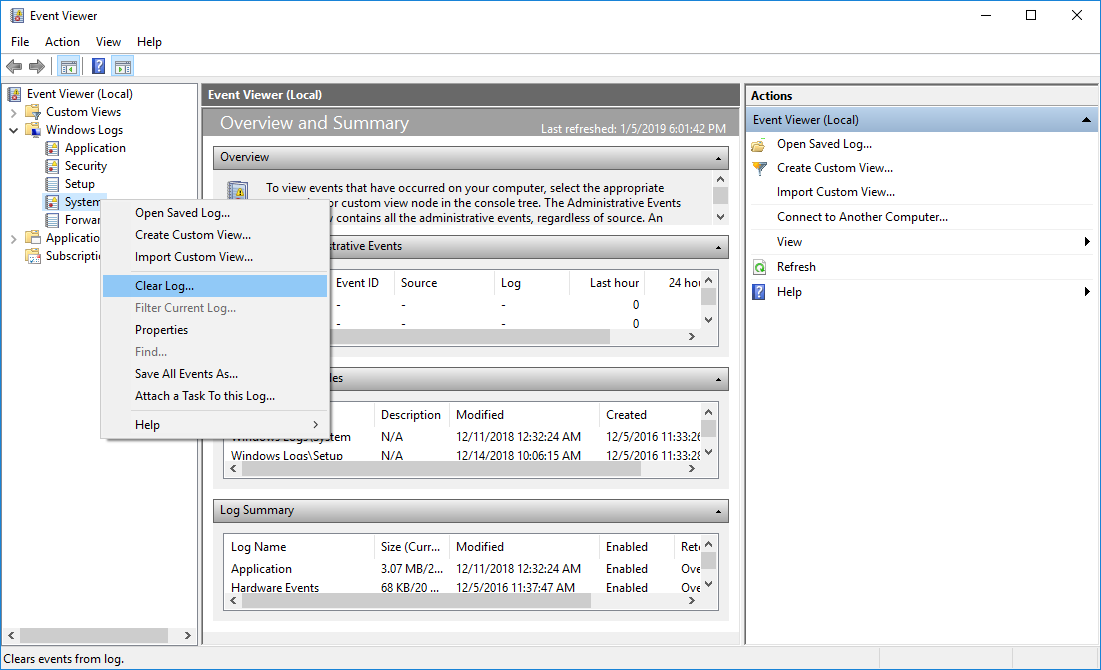
Click the Windows Start button or press WIN+X (The Windows key between the left STRG and ALT key). Choose Event Viewer. (Alternative run it through the shortcut WIN+R and input eventvwr. Depending on your Windows version you will see a similar window like below. Here do:
- Click
Windows Logson the left panel - Right click
Systemand chooseClear Log... - Clear the log
- Reboot
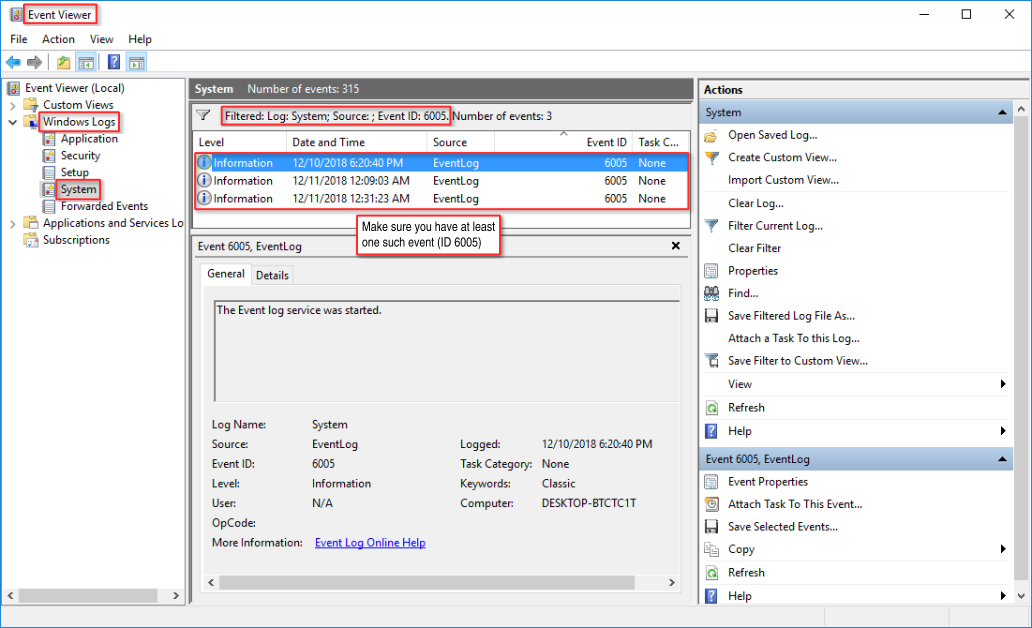
After reboot check if there is a boot event ID 6005 by reopen the Event Viewer as described above. In the Event Viewer expand again the Windows Log and select System in the left field. Use the filter feature in the right panel (click Filter current log) and input 6005 in the search field as shown below:
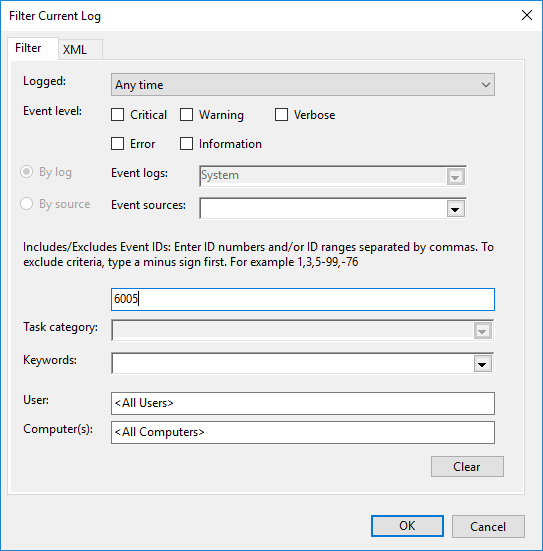
Click OK to apply the filter. In a normal operating Windows system you should always see at least one boot event with the ID 6005. If not, then you have found the reason for the shared log error.
Last resort (if nothing helps)
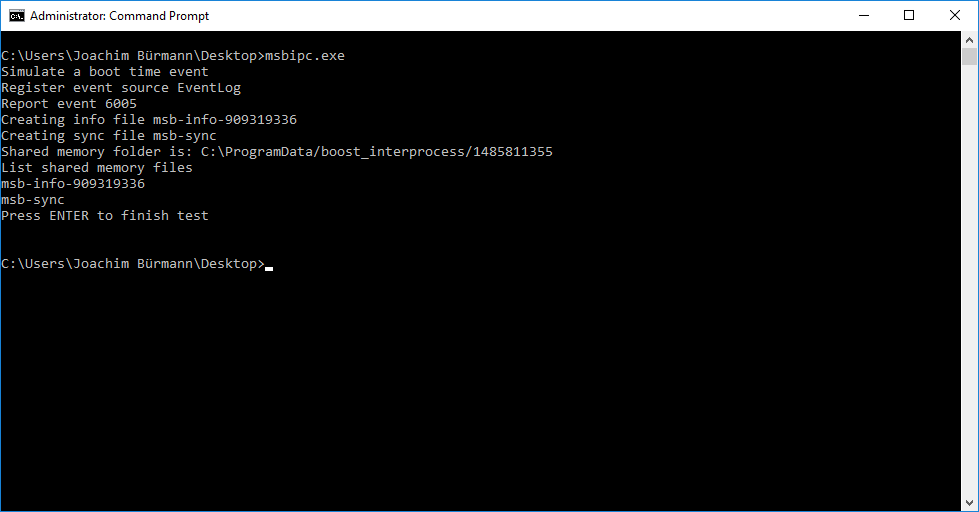
Clear the log and reboot doesn't help. And you still want to stick to your current analyzer version. Since the software needs the boot time (independent of the value), you have to force the event logger to add that event manually with our msbipc.zip tool. You can also find it on our download page. Just input msbipc in the search field because it is not listed in the topics.
Please note: You have to run the msbipc.exe with admin rights. (The admin permission is needed to add an event in the event log). But that shouldn't be a problem because you only have to do it once. To do so:
- Right click the start button or press WIN+X again
- Choose 'Command prompt (Admin)'
- Say 'Yes' in the confirmation dialog
- Run the msbipc.exe from within the admin command box
- Start the analyzer software
Here is the output of the msbipc.exe:
If the same error occurs again after you have reboot your system we advice you to check the event logger mechanism. Perhaps the event log mechanism is corrupt or the event viewer does not start at all. However it is an significant hint of a bug in your system and should be solved independent of the analyzer software.